 AvioADSB
RTL-SDR Blog V4 for ADS-B: Drivers and Setup
Using an RTL-SDR Blog V4 for ADS-B? Install the updated drivers first, then point your decoder at the dongle and connect your receiver to AvioADSB.
The RTL-SDR Blog V4 for ADS-B is a good choice for a first receiver, with one catch: it needs updated drivers. RTL-SDR.com states that "updated drivers are necessary for the RTL-SDR Blog V4", and without them you may get no signals, signals at the wrong frequency, or corrupted signals. Install the drivers before you debug anything else, then connect the dongle to your decoder and your antenna.
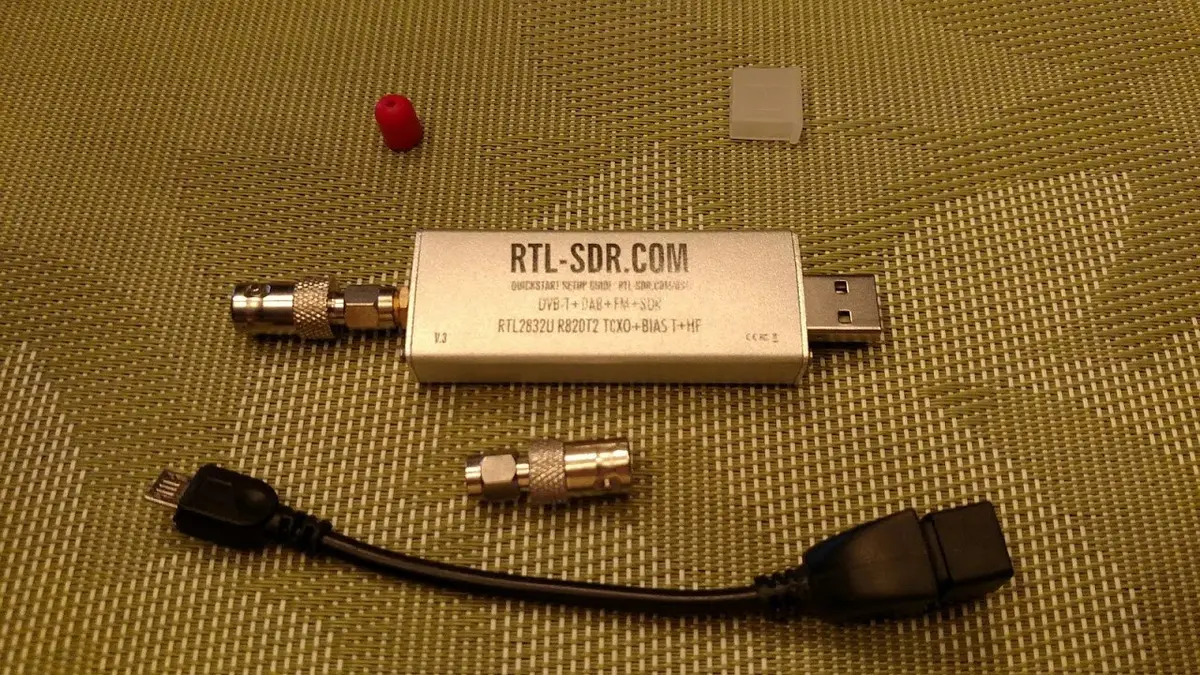
An RTL-SDR dongle (shown for illustration, not the V4 itself). Photo: Joeceads, CC BY-SA 4.0, via Wikimedia Commons.
Why the V4 needs new drivers
The V4 only works properly with the vendor's updated drivers. Those drivers are backward compatible with the V3 and older dongles, so installing them on a machine that also runs an older dongle is safe. The V4 also keeps its identity in the dongle's EEPROM: the manufacturer and product strings must stay as RTLSDRBlog and Blog V4, because the drivers use them to recognise it. Do not rewrite them.
If you are still choosing a dongle, our RTL-SDR dongle guide compares the options, and the hardware guide lists the full parts list.
How to install the V4 drivers on Debian or Raspberry Pi OS
These are the steps from the RTL-SDR.com V4 page, summarised for Debian-based systems:
- Remove old packages with
sudo apt purge ^librtlsdr, then delete any leftover librtlsdr library, include and binary files as the vendor page describes. - Install the build tools and build the current drivers:
sudo apt-get install libusb-1.0-0-dev git cmake pkg-config build-essential
git clone https://github.com/osmocom/rtl-sdr
cd rtl-sdr
mkdir build
cd build
cmake ../ -DINSTALL_UDEV_RULES=ON
make
sudo make install
sudo cp ../rtl-sdr.rules /etc/udev/rules.d/
sudo ldconfig- Stop the Linux TV driver from grabbing the dongle:
echo 'blacklist dvb_usb_rtl28xxu' | sudo tee --append /etc/modprobe.d/blacklist-dvb_usb_rtl28xxu.conf- Reboot.
Check the vendor page before you run these, as commands can change. If you already run a prepackaged feeder image, RTL-SDR.com also gives driver update instructions for the FlightRadar24, FlightAware and ADSBExchange Raspberry Pi images.
Connect the V4 to your ADS-B decoder
After the reboot, plug in the dongle and start your decoder. Our readsb install guide walks through that step on a Raspberry Pi. If no aircraft appear, follow the zero aircraft checklist.
About the bias tee
The V3 and V4 include a 4.5 V bias tee that can be toggled in software and, per RTL-SDR.com, can continuously supply up to 180 mA. You only need it if you add an LNA near the antenna. Read our filter and LNA guide first, because many setups work better without an amplifier.
Share what you receive
A working V4 and a vertical 1090 MHz antenna is a complete ADS-B station. If you already feed another network, you can add AvioADSB from the same decoder with one connector line.
Next step
Connect your receiver to AvioADSB in a few minutes: create a free account, add a receiver and run the feeder script.
Sources: RTL-SDR.com V4 page.