 AvioADSB
Install readsb on Raspberry Pi: ADS-B Decoder Setup
Install readsb on a Raspberry Pi with one script, set your gain and location, check the SBS port, and get your receiver ready to feed AvioADSB.
To install readsb on a Raspberry Pi, run the maintainer's install script, reboot if this is a fresh system, then set your location and gain. readsb is the decoder that turns the radio signal from your RTL-SDR dongle into aircraft positions. This guide follows the official automatic installation page for wiedehopf's readsb, so check it for anything newer than what we describe here.
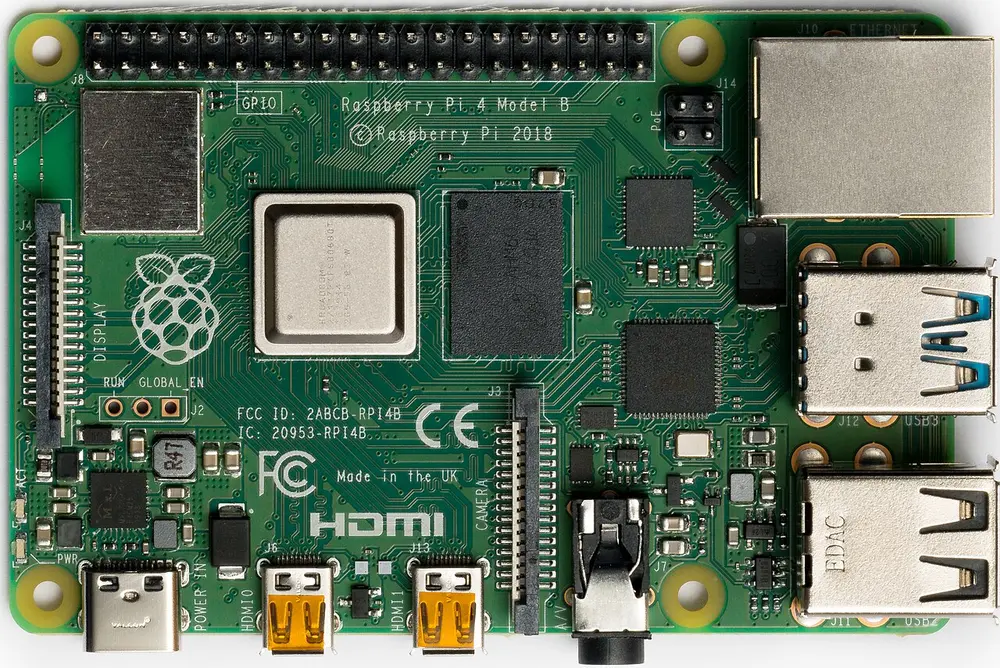
A Raspberry Pi 4 Model B. Photo: Laserlicht, CC BY-SA 4.0, via Wikimedia Commons.
Before you start
You need a Raspberry Pi running Raspberry Pi OS (or another Debian-based system), an RTL-SDR dongle and a 1090 MHz antenna. If you are still collecting parts, read the receiver build guide and the cost breakdown first.
Two notes from the readsb install page:
- The script removes other decoders such as dump1090-fa, because only one decoder can use the dongle at a time.
- An RTL-SDR Blog V4 needs an extra driver install, otherwise it will not receive anything. The install page links the RTL-SDR Blog V4 instructions.
Install readsb step by step
-
Plug in the dongle and antenna, then open a terminal on the Pi.
-
Run the install script:
sudo bash -c "$(wget -O - https://github.com/wiedehopf/adsb-scripts/raw/master/readsb-install.sh)" -
Reboot with
sudo reboot. The install page says this is only needed on systems that have not run RTL-SDR software before, but it is a safe habit on a new setup. -
Set your location, latitude first, then longitude:
sudo readsb-set-location 50.12344 10.23429 -
Set the gain. The simplest option is automatic adjustment:
sudo readsb-gain autoFor manual values, follow the gain optimizing guide. Our low message rate checklist covers what to do when numbers look weak.
-
Open the map at
http://address-of-your-pi/tar1090. If you see "Connection refused", the install page says to runsudo apt install -y lighttpdand rerun the install.
You should see aircraft within a few minutes if the antenna has a reasonable view of the sky. See antenna placement if it stays quiet.
Check the SBS output on port 30003
The AvioADSB feeder script reads SBS data from your decoder on 127.0.0.1:30003. The default readsb configuration in the project's repository enables SBS output on port 30003 (--net-sbs-port 30003), but verify it on your own machine:
nc 127.0.0.1 30003Lines starting with MSG, mean it works. If nothing appears, open the configuration with sudo nano /etc/default/readsb, make sure the network options include --net-sbs-port 30003, save, and restart with sudo systemctl restart readsb.
Useful maintenance commands
- Check the log:
sudo journalctl --no-pager -u readsb - Update readsb: run the same install script again.
- "Kernel driver is active" errors: the install page gives a blacklist fix for the competing kernel modules, followed by a reboot.
Share your data with AvioADSB
A working readsb install is the hard part. Feeding AvioADSB is then a short extra step, and it works alongside any other network your receiver already feeds.
Ready to connect your receiver?
Your decoder is running, so connect your receiver in a few minutes: create a free account, add a receiver and run the feeder script. If you are missing hardware, start with the AvioADSB hardware list.