 AvioADSB
tar1090 Setup: A Live ADS-B Map for Your Receiver
Set up tar1090 on your Raspberry Pi to get a live ADS-B map of your own receiver, check your coverage with pTracks, then connect it to AvioADSB.
tar1090 setup takes one command on a Raspberry Pi that already runs readsb or dump1090-fa. It adds a fast web map of every aircraft your receiver hears, plus tools to see how far your antenna really reaches. It is the quickest way to find out whether your new receiver is working, and it is the view most feeders check every day.
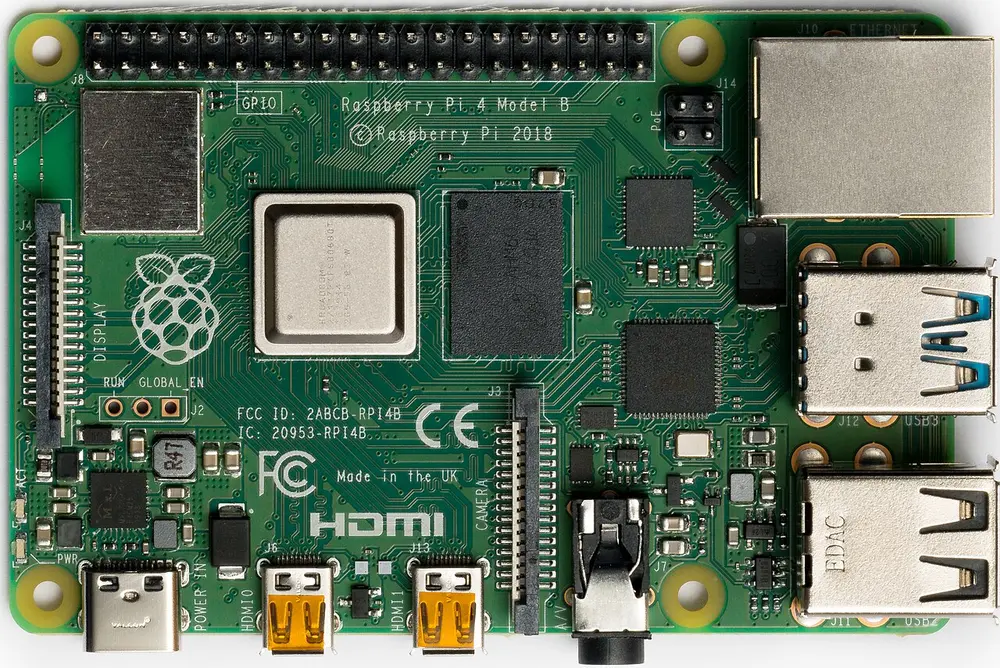
A Raspberry Pi 4 Model B. Photo: Laserlicht, CC BY-SA 4.0, via Wikimedia Commons.
What tar1090 is (and is not)
According to the tar1090 project page, it is a web interface that adds to an existing readsb or dump1090-fa install. It does not decode anything itself. It reads the aircraft.json file that your decoder writes (for example in /run/readsb) and draws it on a map.
That means the order matters: decoder first, map second. If you have not installed a decoder yet, follow the readsb install guide. That guide ends with the map at /tar1090, so you may already have it. This page covers installing it separately and getting more out of it.
Install tar1090 step by step
The install script expects a Debian-based system such as Raspberry Pi OS, Debian or Ubuntu.
-
Make sure your decoder is running. readsb or dump1090-fa should already be receiving aircraft.
-
Run the install command from the project's README:
sudo bash -c "$(wget -nv -O - https://github.com/wiedehopf/tar1090/raw/master/install.sh)" -
Open the map in a browser on the same network:
http://192.168.x.yy/tar1090, replacing the numbers with the address of your Pi. -
Check that aircraft appear. If the sky is clear and the antenna has a view, planes should show up within a few minutes.
If the page loads but stays empty, the problem is the receiver, not the map. Work through the low message rate checklist and the antenna placement tips.
Update or remove tar1090
Per the project README, updating uses the same install command as the first install, and your configuration should be preserved. To remove it, run the uninstall script:
sudo bash -c "$(wget -nv -O - https://github.com/wiedehopf/tar1090/raw/master/uninstall.sh)"See how far your receiver really reaches
The most useful feature for a new feeder is the coverage view. Add ?pTracks to the address:
http://192.168.x.yy/tar1090/?pTracksThe README describes this as showing the last 8 hours of traces so you can see your coverage. Gaps in one direction usually point to a building, a tree line or a hill in the way. Move the antenna, wait a few hours, and compare. Our placement guide explains what to try first.
Other features worth a look, from the README:
- Adjustable history and several map styles.
- Filters for aircraft type, for example helicopters.
- Range outlines loaded from heywhatsthat.com panoramas, to compare theoretical and real range.
Where the settings live
/etc/default/tar1090: history interval and size./usr/local/share/tar1090/html/config.js: web interface settings.
Your receiver location is set in the decoder, not in tar1090. Some features, such as the global history and heatmap, need the wiedehopf fork of readsb, so check the README before you rely on them.
From a local map to a shared network
A local map only shows what your own antenna hears. Feeding combines your receiver with others, so coverage gaps between stations get filled in. It takes a few minutes and works alongside any other network you already feed.
Ready to connect your receiver?
If your tar1090 map shows aircraft, you are done with the hard part. Connect your receiver in a few minutes: create a free account, add a receiver and run the feeder script. Still missing hardware? Start with the AvioADSB hardware list.